Slideshow Timer
The short answer: set the timer above and press Start for a slideshow countdown right now. To keep that countdown visible while you present, use a slideshow timer overlay — SlideTimerApp is a free Windows window that floats on top of a full-screen slide show in PowerPoint, Google Slides, Canva or a PDF. If instead you want the slides to advance themselves every few seconds, that's slide timings, a different setting entirely.
On this page
What is a slideshow timer?
A slideshow timer is a countdown you and your audience can see while the slide show is running. It answers one question at a glance — how much time is left — and it's the difference between a group activity that ends cleanly and one that drifts ten minutes past its slot. Teachers put one on screen for a task, conference chairs put one up for each speaker, and trainers use one so a coffee break actually ends when it says it will.
Written as one word or two, a slideshow timer and a slide show timer mean the same thing. What matters more is where the countdown lives: inside a slide, or on top of the whole show. That single choice decides whether you can pause it, move it, change it mid-talk, or reuse it tomorrow in a different deck.
The two things people mean by "slideshow timer"
Search for a slideshow timer and you'll find two completely different features tangled together. They solve opposite problems, so it's worth knowing which one you actually need before you start clicking through menus.
| A visible countdown | Slide timings | |
|---|---|---|
| What it does | Shows time remaining on screen | Advances the slides by itself |
| Who sees it | You and the audience | Nobody — it's invisible |
| Set up in | An overlay app, or a timer on a slide | Transitions › Advance Slide › After |
| Best for | Activities, talks, exams, breaks | Self-running kiosk and lobby decks |
| Can you pause it live | Yes, with an overlay | Not without stopping the show |
If you're timing people — a task, a speaker, a test — you want the visible countdown. If you're timing slides so a deck loops unattended at a trade-show booth, you want slide timings. Both are covered below.
How to put a timer on your slide show
The reliable way to show a countdown during a live slide show is an overlay timer: a small, transparent, always-on-top window that sits above the presentation instead of inside it. Because it isn't a slide object, full-screen Slide Show can't cover it, and the same timer works in every app you present with.
- Download and open SlideTimerApp. It's a portable ~3 MB Windows app — no installer, no account, works offline.
- Set your duration. Type minutes and seconds, or tap a 1/5/10/15-minute preset.
- Pin it on top and drag it to a corner that doesn't cover your content. Drag an edge to resize the digits.
- Start your slide show (F5 in PowerPoint) and present. The countdown stays on screen, turns red as time runs low, and alarms at zero.
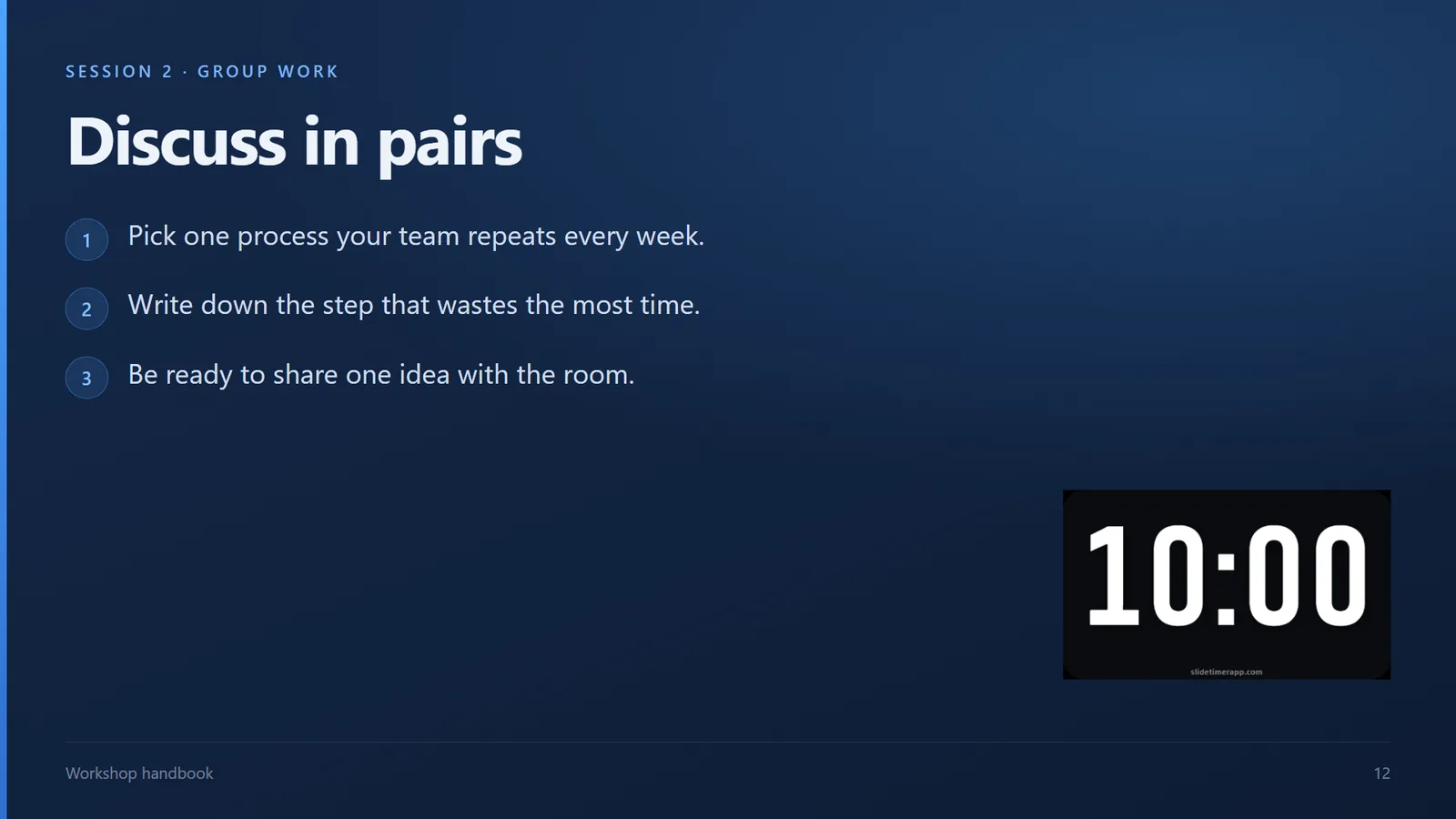
Get the slideshow timer overlay
A transparent countdown that floats on top of any full-screen slide show — PowerPoint, Google Slides, Canva, Keynote or PDF. Free for Windows.
Download SlideTimerApp free ~3 MB · Windows · works offlineHow to set slide timings so the show advances itself
This is the other half of the question, and it's built into the tools you already have. Slide timings don't display anything — they just move the show along.
- PowerPoint: open the Transitions tab, tick After under Advance Slide, and enter the seconds. Click Apply To All for the same pause on every slide.
- Rehearse Timings: under Slide Show, use Rehearse Timings to walk through the deck once and record how long you spend per slide.
- Google Slides: start Present mode, open the three-dot menu, choose Auto-play, and pick an interval.
Use these for a deck that has to run unattended. For anything where a human is being timed, come back to the visible countdown above — a slide that silently flips is no help to someone who needs to know they have two minutes left.
Slideshow timer for PowerPoint, Google Slides and Canva
An overlay behaves identically everywhere, which is the whole point of using one. A few tool-specific notes:
PowerPoint
Floats above full-screen Slide Show and Presenter View. Press F5, then present as normal.
Google Slides
No extension required — the overlay sits above the browser's Present mode.
Canva
Works over Present mode. Canva also has its own shortcut: press 1–9 for a timer of that many minutes.
Keynote & PDF
Any full-screen document works the same way — the timer doesn't care what's underneath.
Related timers
Presentation timer
Recommended durations for talks, pitches and webinars.
Full screen timer
A big countdown that fills the screen when the timer is the slide.
Best presentation timer
Web, overlay, GIF, add-in and phone timers compared.
Frequently asked questions
What is a slideshow timer?
A slideshow timer is a countdown you can see while a slide show is running, so you know how much time is left in an activity, a talk or a section of your deck. It is not the same as slide timings, which control how long each slide stays on screen before the show advances by itself. Most people searching for a slideshow timer want the visible countdown.
How do I put a timer on a slideshow?
Open the timer as its own window and float it on top of the slide show. Download SlideTimerApp, set your minutes and seconds, click the pin so it stays above every window, then start your slide show as normal. Because it is a separate overlay window rather than an object inside a slide, the countdown stays visible over PowerPoint, Google Slides, Canva, Keynote or a PDF, and you can move, pause and reset it while you present.
Is there a slide show timer built into PowerPoint?
Not one your audience can see. PowerPoint has Rehearse Timings, which records how long you spend on each slide while you practise, and Presenter View, which shows an elapsed-time clock on your own monitor only. Neither puts a countdown on the projected screen, which is why presenters add an overlay timer or embed a countdown into a slide.
Can I show a countdown during a Google Slides or Canva slideshow?
Yes. An overlay timer works the same way in every presentation tool because it is a separate window sitting above whatever is on screen. Start Present mode in Google Slides or Canva, then float the timer on top. Canva also has a built-in shortcut: press any number key from 1 to 9 in Present mode to start a timer of that many minutes.
How do I make a slideshow advance automatically after a set time?
In PowerPoint, open the Transitions tab, tick After under Advance Slide, enter the number of seconds, then click Apply To All if you want the same pause on every slide. In Google Slides, start Present mode, open the three-dot menu and choose Auto-play, then pick an interval. This sets slide timings, not a visible countdown, so use it for self-running kiosk decks rather than timed activities.
Is this slideshow timer free?
Yes. The timer on this page runs in your browser, needs no sign-up and collects no data. The SlideTimerApp desktop overlay is also free: a portable Windows app of about 3 MB with no installation, no account and no time limit, and it works offline.